Plan Ahead
Plan Ahead
Someone call 911






Patch Transcript
Image 1: “Sam was on a business trip when he took a quick dinner break.” Sam studies a menu. He slumps back, eyes closed. A restaurant worker puts a hand on his shoulder and calls, “Someone call 911!”
Image 2: An ambulance arrives and a paramedic kneels beside Sam. “Medical ID on iPhone provides first responders and healthcare professionals with access to your essential medical information without requiring a passcode.” A red medical symbol is labeled “Star of Life.” The caption reads, “Your readiness could be a life-saving decision.”
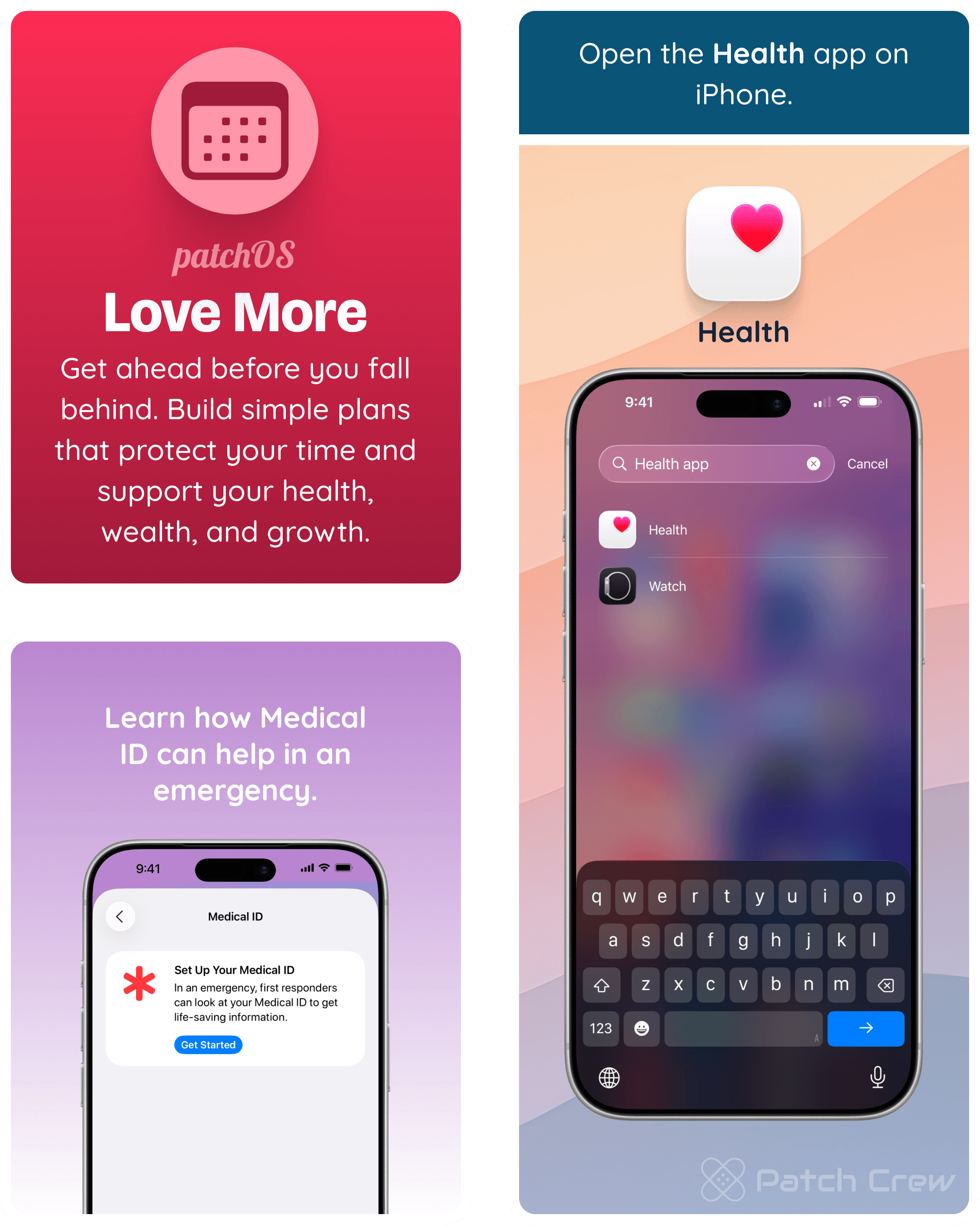
Image 3: A pink calendar card reads, “patchOS. Love More. Get ahead before you fall behind. Build simple plans that protect your time and support your health, wealth, and growth.” An iPhone shows “Set Up Your Medical ID” and “Get Started.” The captions read, “Learn how Medical ID can help in an emergency” and “Open the Health app on iPhone.”
Image 4: “Add your name, date of birth, primary language, medications, allergies, emergency contacts, and additional details.” Three iPhone screens show Medical ID setup, Edit Information, and a completed Medical ID. In the example, Sam Geek’s profile lists English and a shellfish allergy; Show When Locked and Share During Emergency Call are enabled.
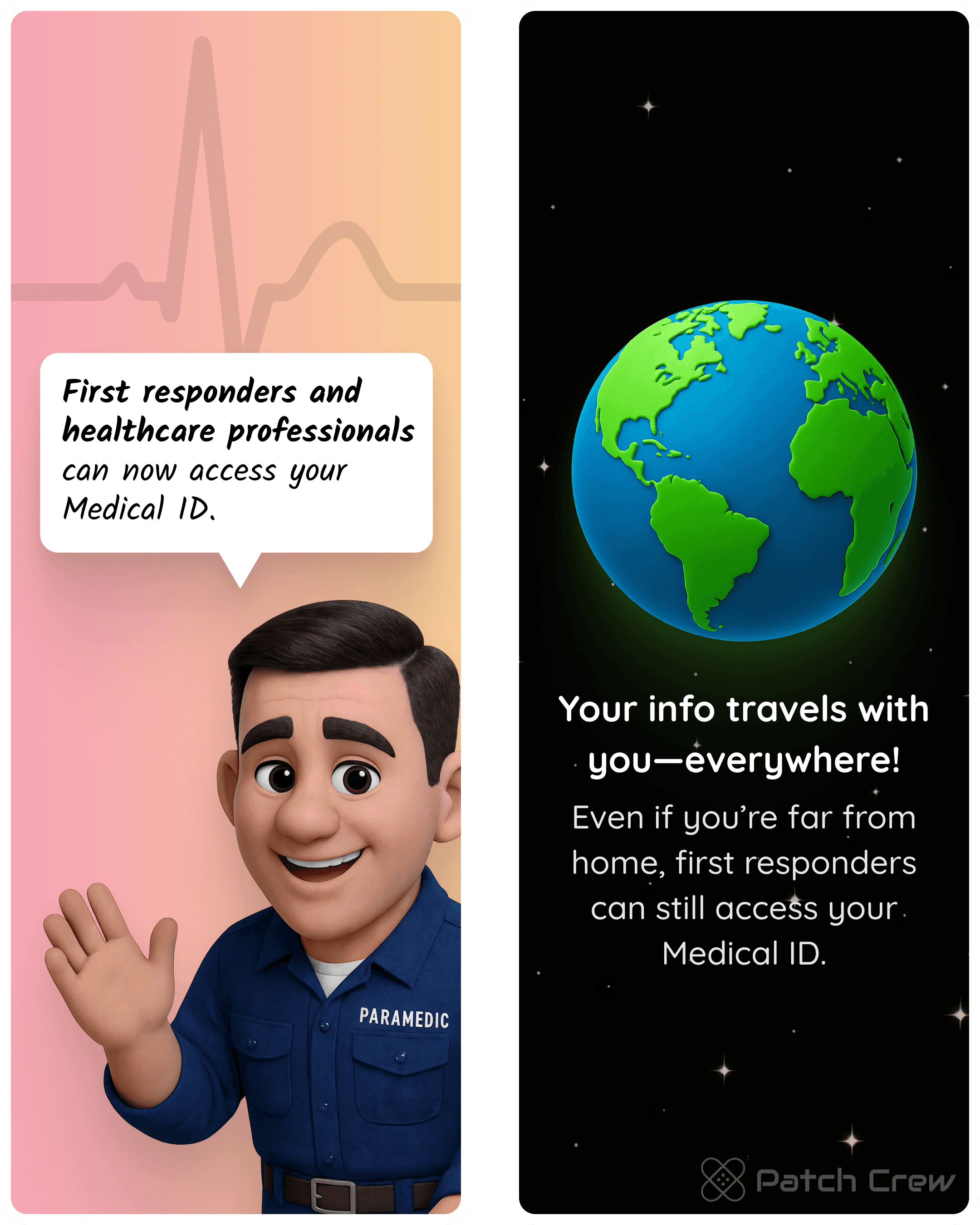
Image 5: The paramedic says, “First responders and healthcare professionals can now access your Medical ID.” Beside a globe: “Your info travels with you—everywhere! Even if you’re far from home, first responders can still access your Medical ID.”
Image 6: “How first responders and healthcare professionals access your Medical ID: iPhone.” Three screens illustrate: “1. Tap to wake the Lock Screen. 2. Tap Emergency on the Passcode screen. 3. Tap Medical ID.”
Image 7: The paramedic holds up a watch. “Your Medical ID can also be accessed on Apple Watch.” The watch displays Sam Geek’s Medical ID, age 49, English, organ donor, and medication information.
Image 8: “How first responders and healthcare professionals access your Medical ID: Apple Watch.” Three watch screens illustrate: “1. Press and hold the Side Button. 2. Drag the Medical ID slider to the right. 3. Tap an emergency contact to call.” The last screen is calling Julie Geek.
Image 9: “Turn on Share During Emergency Call. This setting enables your iPhone to share information from your Medical ID with emergency services when you make calls or send texts from supported locations.” The switch is on in the example. “Enabling this setting can improve emergency response capabilities, especially if you have a comprehensive and up-to-date Medical ID. If you use Emergency SOS to call emergency services, your iPhone will automatically send a message to your emergency contacts.”
Image 10: An ambulance’s lights flash. “First responders and healthcare professionals can now access your essential medical information without a passcode.” A tip reads, “Add your doctor or pharmacy to the notes section for quick access.”
Image 11: “Now back to our story…” Outside, the sign reads “Italian Restaurant.” Inside, the paramedic checks Sam’s phone, thinking, “Allergic to shellfish…” The caption reads, “The paramedic administered an epinephrine shot to Sam.”
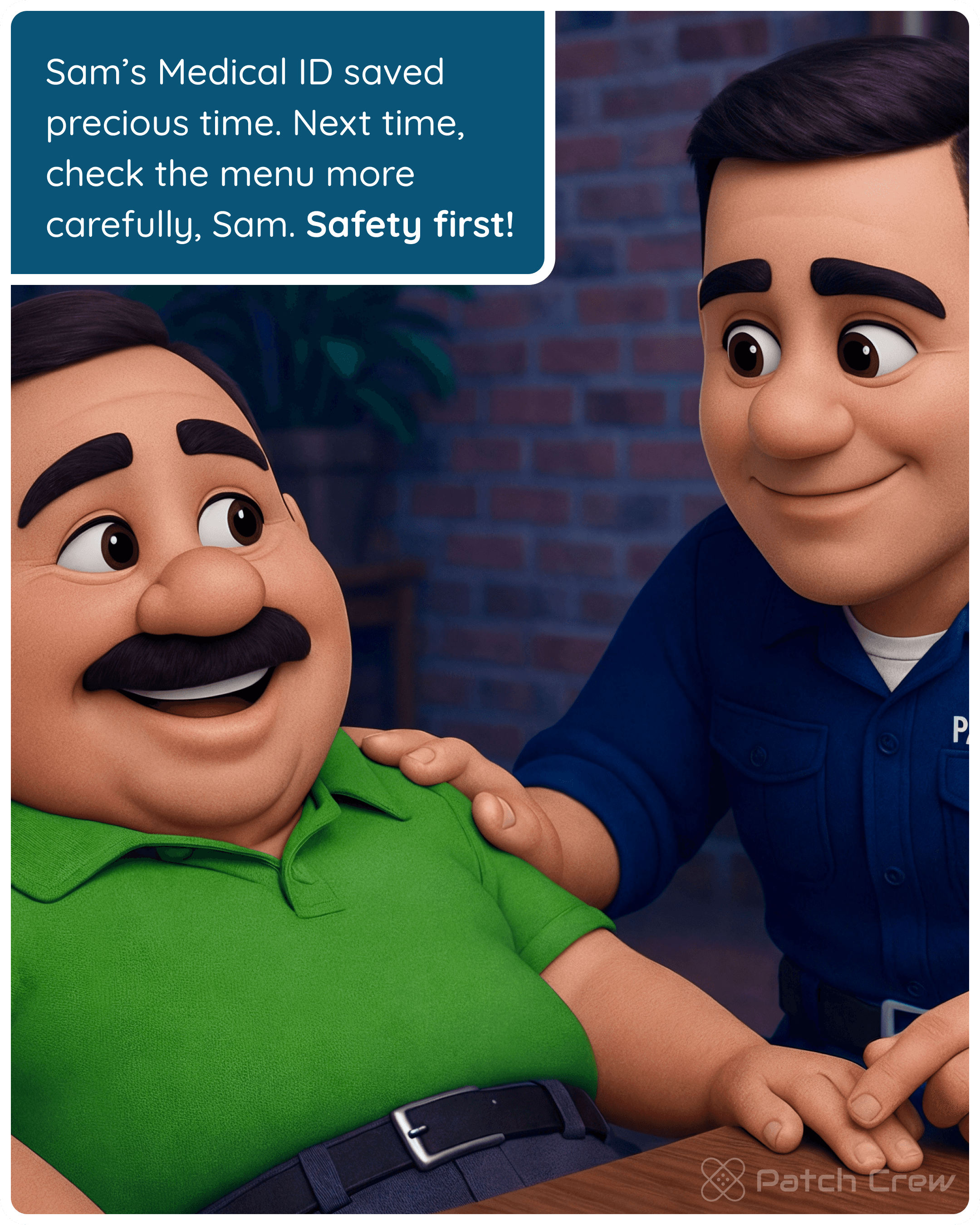
Image 12: Sam is awake and smiling. The paramedic rests a hand on his shoulder. “Sam’s Medical ID saved precious time. Next time, check the menu more carefully, Sam. Safety first!”
Image 13: A collage repeats the iPhone setup and emergency-access screens: Set Up Your Medical ID, Edit Information, the Emergency call keypad and Medical ID link, and Sam’s completed profile with his medication, shellfish allergy, and emergency contact.
Behind This Patch
Sam did not see it coming. One minute he was eating dinner; the next, the server was calling 911 and no one nearby knew his allergies or emergency contacts.
Medical ID is an iPhone Health feature that can display information such as allergies, medications, medical conditions, blood type, and emergency contacts from the lock screen. That can give a responder useful context when you cannot provide it yourself.
Apple’s Medical ID instructions explain how to choose what information to include and whether it should appear when the phone is locked. If you enable Show When Locked, anyone who can access the Emergency screen may be able to view the Medical ID information you selected, so include details intentionally.
This is the Plan Ahead habit doing what it does best: a short setup completed now so useful information is available during an unexpected situation. Medical ID does not replace professional care or guarantee a particular response, but it can make your preferences and contacts easier to find.
We gave the scene an ordinary dinner setting because emergencies rarely arrive with a warning. Sam could not explain what was happening, and someone else needed a place to look.
We chose a quiet setup screen because useful preparation is often invisible until someone needs it. A few accurate details can mean one less question in a hard moment.
Patch Challenge
Open the Health app and review or create your Medical ID.
Add emergency contacts and confirm their phone numbers.
Review your medications, allergies, and conditions for outdated information.
Help a family member review their own emergency information.
Decide whether Show When Locked is appropriate for the information you chose to include.
SUPPORT
Enjoy this Patch?
Help keep Patch Crew independent and make the next Patch possible.
PATCH PICKS
Put it into practice
Find useful tools and products selected to help you apply this Patch.
