Love More
Love More
We haven’t spoken in a while









Patch Transcript
Image 1: PatchBot types on a laptop under the moon. “The best business emails are clear, concise, and include a few pleasantries. They’re also free of spelling and grammar mistakes, ambiguity, and cross-cultural slip-ups that can lead to miscommunication or misunderstandings.” PatchBot says, “Reveal you’re a professional with a capital ‘P.’”
Image 2: patchOS — Love More. Connect deeper, more often. Strengthen relationships through better communication that enriches everyday life. A gold @ sign introduces “12 steps to write a smashing business email.” A traveler holding a suitcase says, “I prefer text messages.”
Image 3: PatchBot replies, “Email is still the go-to for most external communication.” Then: “Don’t worry. We’ll be done in a jiffy!” The traveler asks, “How long’s a jiffy?”
Image 4: “Step 1. Decide the tone.” Hands hover over a keyboard. “Your tone depends on who you’re emailing and why. You might use a formal tone for a first-time contact, an informal tone for internal updates, and a casual tone when collaborating on a project.”
Image 5: “Formal.” Two people in business clothes look at a tablet. “A formal tone is generally used for first-time emails, infrequent communication, or when addressing someone in a higher position.” PatchBot wears a suit. “This tone sounds like a business letter. It’s common for requests, complaints, problems, and apologies.”
Image 6: “Informal.” Two people share a tablet. “An informal tone works well for colleagues, internal updates, and people you already know.” PatchBot wears a polo shirt. “This tone is professional, but friendly and relaxed. It’s common for quick internal updates or less formal check-ins.”
Image 7: “Casual.” Two people in everyday clothes lean over a tablet. “A casual tone is great for quick, friendly messages with people you email often.” PatchBot wears a T-shirt. “This tone is like a text message. It’s common for greetings, compliments, or quick pleasantries. It could be just a few sentences.”
Image 8: “Step 2. Add a salutation.” A man at his computer thinks, “Hi Kate.” The caption reads, “Once you establish your tone, your salutation sets the vibe and helps things start on a friendly note.”
Image 9: “Salutations.” Formal examples: “Dear Mr. [Last name],” “Dear Ms. [Last name],” “Dear [First name],” “Dear All,” “Dear Sir or madam.” Informal: “Hello [First name],” “Hi [First name],” “Hi everyone,” “Good morning [First name],” “Team.” Casual: “Hi,” “Hey [First name],” “[First name].” PatchBot adds, “Add a comma or colon (formal punctuation for people you don’t know) after the name.”
Image 10: A new email from Miles Murphy begins, “Hi Tomohiro,” with the recipient and subject fields empty. PatchBot says, “Hit Enter/Return twice for a line break.”
Image 11: “Step 3. Introduce yourself.” The caption reads, “If the recipient doesn’t know you—or might not remember your name—start with a quick introduction. If they do know you, begin with a friendly pleasantry instead.” A woman with a phone thinks, “We haven’t spoken in a while. I hope you’re doing well.”
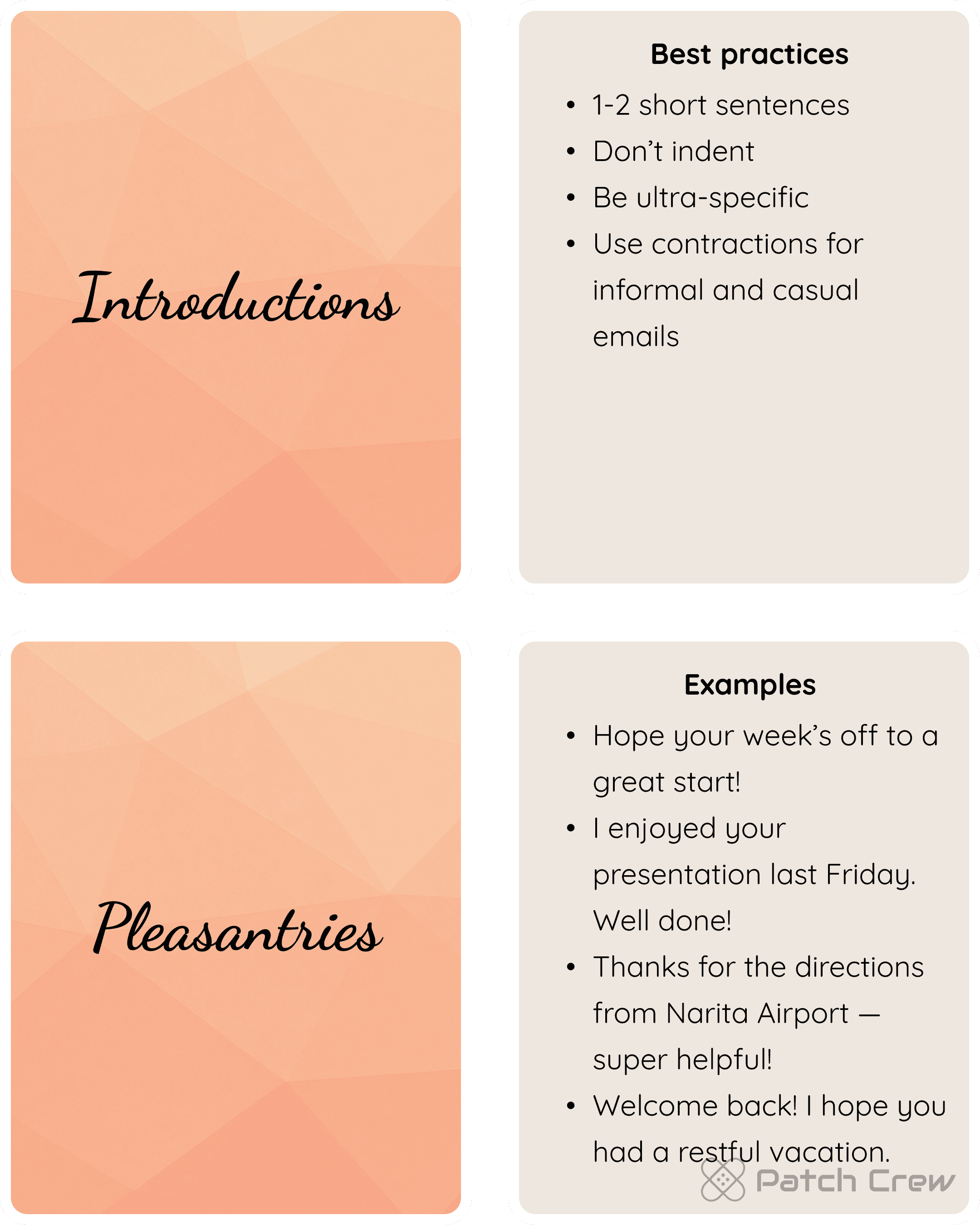
Image 12: “Introductions.” Best practices: 1–2 short sentences. Don’t indent. Be ultra-specific. Use contractions for informal and casual emails. “Pleasantries.” Examples: “Hope your week’s off to a great start!” “I enjoyed your presentation last Friday. Well done!” “Thanks for the directions from Narita Airport — super helpful!” “Welcome back! I hope you had a restful vacation.”
Image 13: Miles adds, “My name is Miles Murphy. I’m the new Director of Marketing for XYZ in the U.S. I’m excited to be working with you!” PatchBot says, “Hit Enter/Return twice for a line break.”
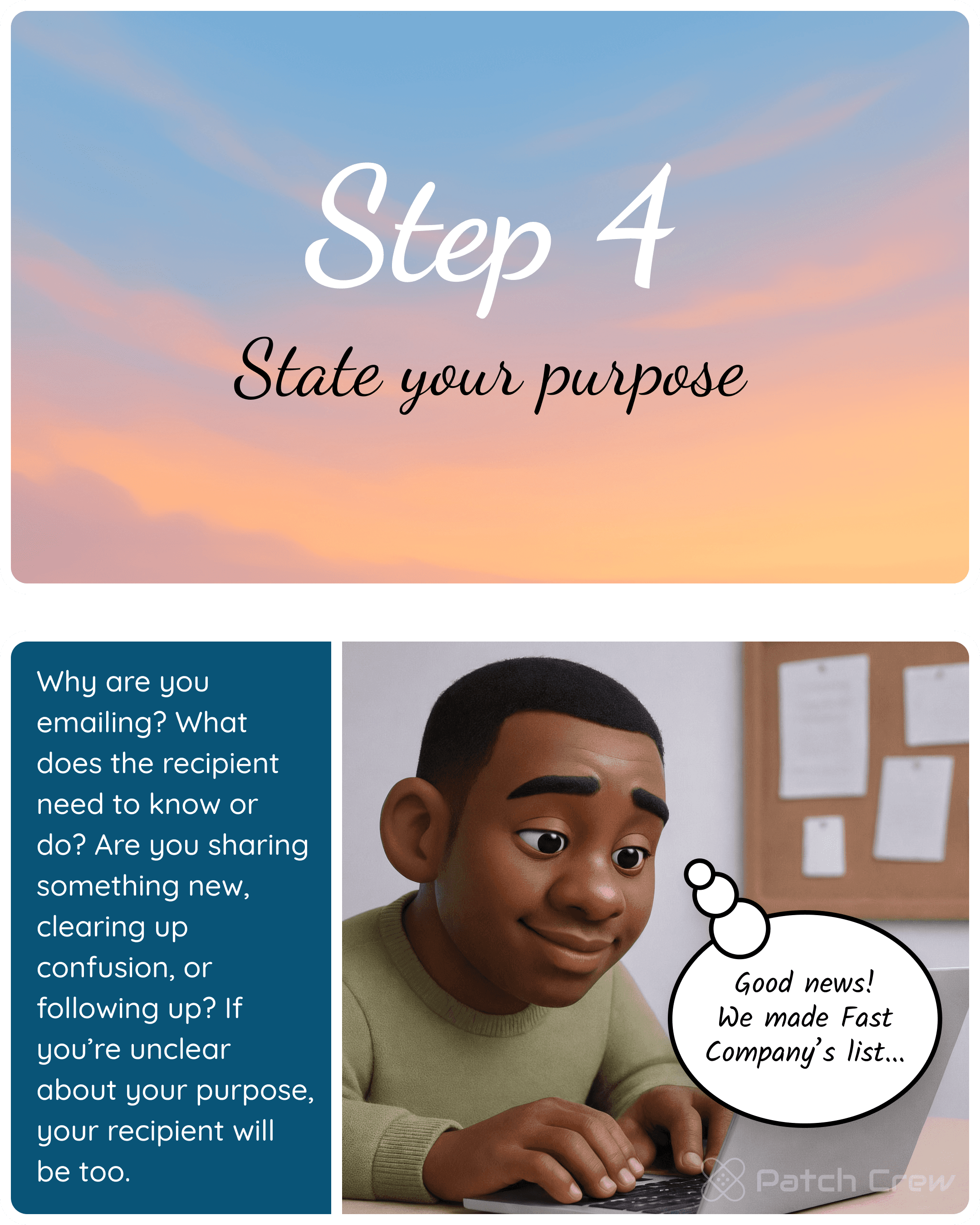
Image 14: “Step 4. State your purpose.” A man thinks, “Good news! We made Fast Company’s list…” The caption asks, “Why are you emailing? What does the recipient need to know or do? Are you sharing something new, clearing up confusion, or following up? If you’re unclear about your purpose, your recipient will be too.”
Image 15: “Reasons.” Best practices: 1–5 short sentences. 1 paragraph. Aim for brevity. Be polite, positive and ultra-specific. Ensure pronouns are understood. Examples: “I wanted to tell you…” “I have a question about…” “I’m following up regarding…” “Just a quick reminder that…” “Monday at 10 a.m. works for me.” “What’s Akira Yamamoto’s email address?” A card reads “Power boost!”
Image 16: Miles adds, “I’d like to schedule a two-day visit to Tokyo in October to meet you and the marketing team. What dates work best for you?” Under “My availability” he lists October 1–2, October 8–9, and October 13–14. PatchBot says, “Hit Enter/Return twice for a line break.”
Image 17: “Step 5. Provide more detail.” A person at a laptop thinks, “Here’s our agenda…” The caption reads, “What else does the recipient need to know or do? Use headers, bullet points, and short paragraphs to keep things easy to read. Stay focused—less is more. Too much detail can overwhelm.”
Image 18: “Do & don’t.” Bold headers and key details. Use numbered or bulleted lists. Give attachments clear, concise filenames. Mention how many attachments are included. List all attachments if there’s more than one. Don’t use slang or excessive jargon. Avoid passive voice. Never use discriminatory or offensive language. Skip flashy fonts and random colors. Hold off on emojis or emoticons unless you know they’re okay. A card reads “Strong signal.”
Image 19: “Attachments.” Examples: “I’ve attached [filename or document name]”; “Please find attached [filename or brief description]”; “I’ve included two attachments for your trip to Los Angeles”; “Attached: directions from Los Angeles International Airport (LAX).” A warning asks, “Did you mean to add an attachment? You wrote ‘I’ve attached the map. Please find…’, but it looks like you might have missed adding a document. Do you want to send it anyway?” The button reads “Send Anyway.” The sender thinks, “OOPS!”
Image 20: Miles adds “Our agenda” with three items: “1. Finalize the February launch of XYZ Mobile. 2. Discuss the rollout timeline. 3. Finalize the digital and TV campaign plan.” PatchBot says, “Hit Enter/Return twice for a line break.”
Image 21: “Step 6. Close the message.” A woman at a keyboard thinks, “I look forward to…” The caption reads, “Clarity is kindness. Ask for a reply or end with warmth.”
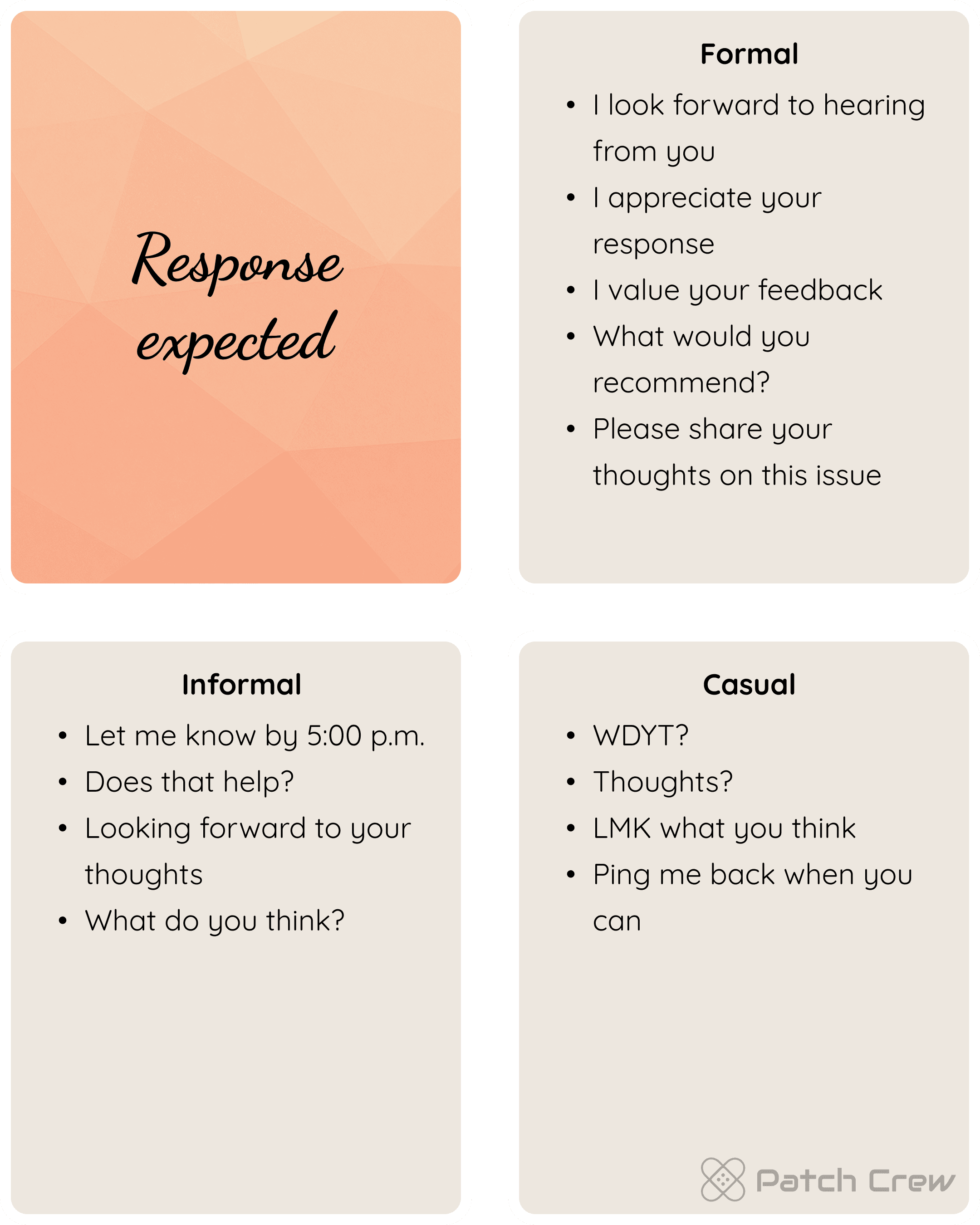
Image 22: “Response expected.” Formal: “I look forward to hearing from you”; “I appreciate your response”; “I value your feedback”; “What would you recommend?”; “Please share your thoughts on this issue.” Informal: “Let me know by 5:00 p.m.”; “Does that help?”; “Looking forward to your thoughts”; “What do you think?” Casual: “WDYT?”; “Thoughts?”; “LMK what you think”; “Ping me back when you can.”
Image 23: “Response not expected.” Formal: “Thank you very much”; “I appreciate your assistance”; “Please don’t hesitate to reach out with any questions”; “Let me know if there’s anything else you need—happy to help.” Informal: “Thanks for your help”; “Hope that helps”; “Have a nice day”; “Have a good one.” Casual: “Cheers”; “Thanks!”; “Good luck”; “Catch you later.”
Image 24: Miles closes the message with “Looking forward to connecting in person.” PatchBot says, “Hit Enter/Return twice for a line break.”
Image 25: “Step 7. Add a sign off.” A man thinks, “Regards.” The caption reads, “Choose a sign-off that matches your tone, and leave one or two line breaks before your signature. Choose your sign-off like a movie ending: heartfelt, upbeat, or leave ’em with a wink.” A winking face follows.
Image 26: “Sign off.” Formal: Sincerely, Cordially, Respectfully, Best regards, Kind regards, Warm regards, All the best. Informal: Regards, Thanks, Best, Take care, Talk soon. Casual: Cheers, Thanks, Thanks again, Catch you later.
Image 27: Miles adds “Best regards,” beneath his closing sentence. PatchBot says, “Hit Enter/Return twice for a line break.”
Image 28: “Step 8. Add your signature.” A woman holding a phone thinks, “Clara McKennitt.” The caption reads, “Just like your tone, your signature should match the situation. Use a more complete signature for first-time contacts and formal emails, and keep it simple for informal or casual messages.”
Image 29: “Signature.” PatchBot says, “Your signature is a chance to show your professionalism and boost your credibility, and your brand!” Best practices: keep a few signature options to choose from. Use ALL CAPS for your last name if cultural name order could cause confusion. Add your title (Mr./Ms.) if your name might be unfamiliar—even names like Chris can be gender ambiguous. For frequent contacts, consider a shorthand version of your name (e.g., Tomohiro Sato → “Tomo”). Use more detail for new contacts, less for daily replies. If you’re unsure which signature to use, match the tone of your sign-off.
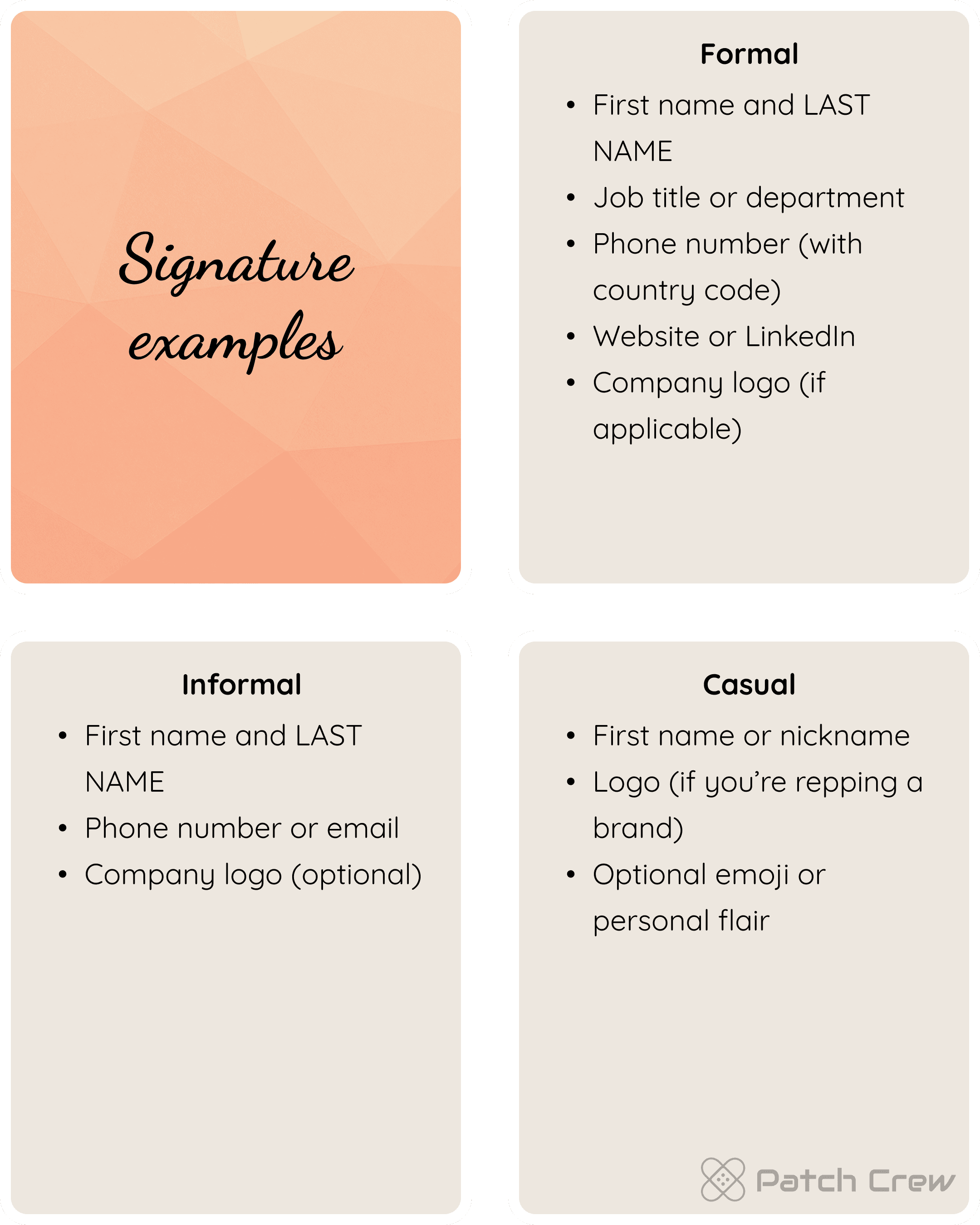
Image 30: “Signature examples.” Formal: first name and LAST NAME, job title or department, phone number (with country code), website or LinkedIn, company logo (if applicable). Informal: first name and LAST NAME, phone number or email, company logo (optional). Casual: first name or nickname, logo (if you’re repping a brand), optional emoji or personal flair.
Image 31: The signature now reads, “Miles MURPHY (he/him). Director of Marketing / XYZ, Inc. Inside U.S. (212) 555-1234. Outside U.S. +1 (212) 555-1234.” PatchBot says, “Hit Enter/Return twice for a line break.”
Image 32: “Step 9. Add a subject.” A man with a laptop on a plane thinks, “Friday Lunch – 1:00 PM?” The caption reads, “Summarize the message in the subject with a few keywords to convey the email’s urgency.”
Image 33: “Subjects. Think of subjects like newspaper headlines!” A rolled-up newspaper reads “Breaking News.” Best practices: 3–5 keywords from the message. Replace articles (a, an, the), prepositions (in, on, at), and conjunctions (and, but) with em dashes or slashes. Turn subjects into questions by adding a question mark. Examples: “Proposal: XYZ — Due Friday”; “Out of Office — Oct 8”; “Canceled — design critique”; “Friday lunch — 1:00?”; “Project Phoenix – Phase 2 initiated,” followed by a check mark.
Image 34: Miles enters the subject “Tokyo Visit – October.” The recipient field is still blank.
Image 35: “Step 10. Proofread.” A woman reading her screen thinks, “There, their, they’re?” The caption asks, “Did you spellcheck? Did you spell the recipient’s name and company correctly? Are there any sentences that should be revised or deleted? Is the message clear, concise, and courteous? Is it error-free?”
Image 36: PatchBot makes an OK sign and says, “Leverage AI for a hand!” Three panels show ChatGPT, Claude, and Gemini.
Image 37: The proofread email reads, “Hi Tomohiro, My name is Miles Murphy. I’m the new Director of Marketing for XYZ in the U.S. I’m excited to be working with you! I’d like to schedule a two-day visit to Tokyo in October to meet you and the marketing team. What dates work best for you? My availability: October 1–2, October 8–9, October 13–14. Our agenda: 1. Finalize the February launch of XYZ Mobile. 2. Discuss the rollout timeline. 3. Finalize the digital and TV campaign plan. Looking forward to connecting in person. Best regards, Miles MURPHY (he/him).” His title and contact information follow.
Image 38: “Step 11. Add the email address.” A man at his computer thinks, “Diego.Pérez@…” The caption reads, “Most people start by entering the recipient’s email address, but saving it for last can help you avoid sending it too soon — or to the wrong person.”
Image 39: The To field now reads “Tomohiro Sato – tomohiro.sato@xyzkk.com.” The message is from Miles Murphy, miles.murphy@xyz.com. The subject is “Tokyo Visit – October.” The send arrow is blue.
Image 40: “Step 12. Send.” A woman looking at her phone thinks, “Sent!” The caption reads, “If you accidentally send the email too soon, most services (like Apple mail and Gmail) offer an ‘Undo Send’ feature that lets you cancel it within a few seconds.”
Image 41: The completed email is addressed to Tomohiro. A red outline highlights the blue send arrow. PatchBot says, “Click the send button!”
Image 42: PatchBot looks up from the laptop. “Boom! One small click for work, one giant leap for email professionalism.”
Image 43: “Patch the habits holding you back. Set better default habits with patchOS.” Six colored icons list Plan Ahead, Eat Well, Move Often, Stress Less, Love More, and Sleep Deep.
Behind This Patch
The message should be simple. Instead, the greeting gets rewritten, the exclamation point feels oddly important, and the draft gets longer every time it is opened.
A useful professional email has a clear subject, a direct opening, the necessary context, a specific request or next step, and a closing that fits the relationship. The goal is not to sound impressive. It is to make the message easy to understand and act on.
The Harvard Business Review recommends putting the purpose of a message up front and making requested actions explicit. That structure can reduce follow-up questions and help the recipient respond more efficiently.
We put the camera on the unsent email because that is where the tension lives. Trying to sound exactly right can keep a clear, kind message from ever reaching the other person.
This is the Love More habit at its most practical. Clear, considerate communication reduces friction at work and makes it easier to reconnect with someone you have not spoken to in a while.
We focused on the unsent message because most of the friction lives before ‘send.’ Clear enough is often kinder to both the writer and the reader than perfect.
Patch Challenge
Rewrite one long email in five sentences or fewer.
Use a specific subject line that tells the reader what the message is about.
Move your request or purpose into the first two sentences.
Read your next email aloud and remove anything that slows it down.
Add the recipient address only after the message is written and proofread.
SUPPORT
Enjoy this Patch?
Help keep Patch Crew independent and make the next Patch possible.
PATCH PICKS
Put it into practice
Find useful tools and products selected to help you apply this Patch.
